Friday, November 1, 2013

Improved SCCM 2012 SRSS Microsoft Updates Compliance Report

So I still wasn't happy with the last compliance report I created.  I wanted something that I didn't have to bounce around to a lot of screens in, but still gave me a solid summary which was easily filtered just to the machine or set of machines I wanted.  For a summary I'm just interested in a broad compliance figure, but I want to b able to drill down for additional information.  I also want it to show me missing patches even if they aren't approved, this way I can catch anything I've missed and also review missing updates to see if we need them. 

So the first step was to generate the summary for a specific machine.  I got most of this code from Garth Jones,  he's a wizard when it comes to queries so if I'm looking for something he's usually my first stop.
SELECT    
      CS.Name0 AS System,
      CS.UserName0 AS 'User',
      SUM(CASE WHEN UCS.Status = 2 THEN 1 ELSE 0 END) AS Missing,
      SUM(CASE WHEN UCS.Status = 3 THEN 1 ELSE 0 END) AS Installed,
      ROUND((SUM(CONVERT(float, CASE WHEN UCS.Status = 3 THEN 1 ELSE 0 END))
          / (SUM(CONVERT(float, CASE WHEN UCS.Status = 2 THEN 1 ELSE 0 END))
           + SUM(CONVERT(float, CASE WHEN UCS.Status = 3 THEN 1 ELSE 0 END))))
          * 100, 2) AS Compliance, WS.LastHWScan
FROM        
      v_Update_ComplianceStatus AS UCS
      LEFT OUTER JOIN v_GS_COMPUTER_SYSTEM AS CS
            ON CS.ResourceID = UCS.ResourceID
      JOIN v_CICategories_All AS CI
            ON CI.CI_ID = UCS.CI_ID
      JOIN v_CategoryInfo AS NFO
ON NFO.CategoryInstance_UniqueID = CI.CategoryInstance_UniqueID
AND NFO.CategoryTypeName = 'UpdateClassification'
      LEFT JOIN v_GS_WORKSTATION_STATUS AS WS
ON WS.ResourceID = CS.ResourceID
      LEFT JOIN v_FullCollectionMembership AS FCM
ON FCM.ResourceID = CS.ResourceID
WHERE    
(UCS.Status IN (2, 3))
AND (CS.Name0 = '<SomeServer>')
AND FCM.CollectionID = '<SomeCollectionID>'
             AND NFO.CategoryInstanceName = 'Critical Updates'
GROUP BY
CS.Name0,
CS.UserName0,
WS.LastHWScan

This will return something like this:
Sytem              User    Missing Installed Compliance  Last Scan
<servername> NULL 0            2             100               2013-10-31 19:21:12.000

That's great!  Now to move it over to Report Builder and make it usable.  First open report builder, and select Table or Matrix Wizard.  Select 'Create a dataset', and use your Data Source (connecting with whatever account you have for building reports).  On the Design a query page, click 'Edit as Text', and paste in the base query.

This is where we do the first modification.  Change = <SomeServer>, <SomeCollectionID>, and = 'Critical Updates' to Like @NameFilter, @CollectionID, and Like @UpdateType respectively.  That way report builder will prompt you for those fields later. *This is a good time to hit the ! button and test it.  Changing = to Like lets you put some wild cards into the finished product.


 (edit: I didn't originally change =@CollectionID to LIKE, I did it after the screenshot...)

Hmm, I can already see one machine I have to look at.  So that's your first dataset, now to make it cool.  Click next.  System is your Row Group, the rest are values. On the next screen, I uncheck Show Subtitles and Expad/collapse groups.  This is a summary and I want it really squished.  Use your favorite style.  I'm partial to Corporate.  Ok now you can run it if you want, I know you will anyway.  But next I'm going to make it easier.

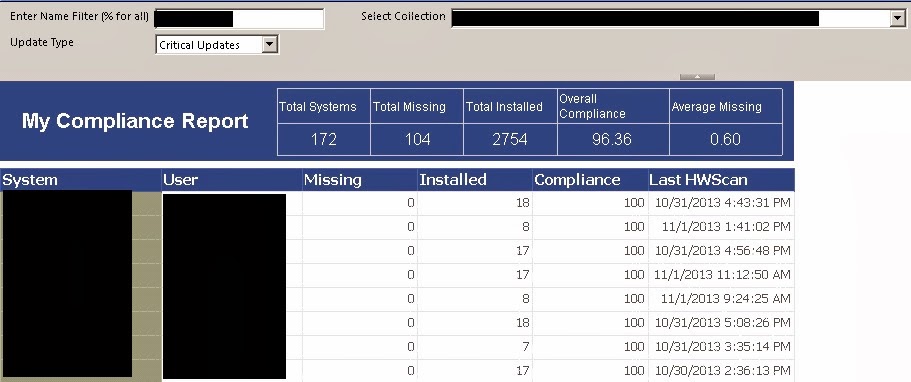
Expand Parameters and you'll see the three @Parameters you built earlier.  Pretty cool that it auto-populates that. Any way, edit @NameFilter (r-click, properties). In General change the prompt to "Enter Name Filter (% for all)".  On Default Value enter the filter you use most often followed by a % for the wildcard, ie I use the 3 digit code that specifies machines near me.  If you want to look at all first, Default it to %.  But I have several thousand workstations so I work on a subset at a time.

Ok, new cool stuff.  You saw the 'Get Values from a query' option in there didn't you?  You want to try it don't you?  Uh, how you ask?  Well first you need another dataset just for your drop down.  So right click datasets and select add dataset.  Select 'Use a dataset embedded...', choose your data source, and paste something like the following in the query box.

Select
 CollectionID,
 Name AS CollectionName,
 CollectionID+' - ' +Name AS NameSort
From
 v_Collection
ORDER BY
 Name

Now in the @CollectionID properties, change the Prompt to 'Select Collection: '.  In Available Values, select 'Get values from query'.  Select your new Data Set, should be Data Set 2.  Value field is what you want returned, the CollectionID, and the Lable Field is what you'll see in the selection, use NameSort.  In Default Values, select Specify Values and enter the CollectionID that you want to use as a default.

For @UpdateType I'm going to use the Specify Values option for Available Values.  I could to a query and find all the types, but I also what to be able to specify All, and if you get from a query you can't add to it.  So click add for each of the following and specify:

(Label / Value)
All / %
Critical Updates / Critical Updates
Security Updates / Security Updates
Definition Updates / Definition Updates
Feature Packs / Feature Packs
Service Packs / Service Packs
Update Rollups / Update Rollups
Updates / Updates

I set the default to Critical Updates.  Up to you.

Run it!  Still needs some clean up but we'll get to that when we add some more to the report. 

So what else can we add?  Well the first thing someone always asks me for is an overall compliance status.  You could export all this data to Excel and add everything together and get a number, but I don't like by boss's boss to talk to me so I just want to include it on the report.  Next step, add another new data set that says this  (look familiar? it just removes grouping from the original report):

SELECT    
 Count(DISTINCT CS.Name0) AS 'Total Systems',
 SUM(CASE WHEN UCS.Status = 2 THEN 1 ELSE 0 END) AS 'Total Missing',
 SUM(CASE WHEN UCS.Status = 3 THEN 1 ELSE 0 END) AS 'Total Installed',
 ROUND((SUM(CONVERT(float, CASE WHEN UCS.Status = 3 THEN 1 ELSE 0 END)) /
  (SUM(CONVERT(float, CASE WHEN UCS.Status = 2 THEN 1 ELSE 0 END)) +
   SUM(CONVERT(float, CASE WHEN UCS.Status = 3 THEN 1 ELSE 0 END)))) * 100, 2)
   AS 'Overall Compliance',
 ROUND(SUM(CONVERT(float,CASE WHEN UCS.Status = 2 THEN 1 ELSE 0 END)) /
  CONVERT(float, Count(DISTINCT CS.Name0)), 2) AS 'Average Missing'
FROM        
 v_Update_ComplianceStatus AS UCS
        LEFT OUTER JOIN v_GS_COMPUTER_SYSTEM AS CS ON CS.ResourceID = UCS.ResourceID
 JOIN v_CICategories_All AS CI ON CI.CI_ID = UCS.CI_ID
 JOIN v_CategoryInfo AS NFO ON NFO.CategoryInstance_UniqueID = CI.CategoryInstance_UniqueID AND NFO.CategoryTypeName = 'UpdateClassification'
 LEFT JOIN v_GS_WORKSTATION_STATUS AS WS ON WS.ResourceID = CS.ResourceID
 LEFT JOIN v_FullCollectionMembership AS FCM ON FCM.ResourceID = CS.ResourceID
WHERE    
 (UCS.Status IN (2, 3))
 AND (CS.Name0 LIKE @NameFilter)
 And FCM.CollectionID = @CollectionID
 and NFO.CategoryInstanceName LIKE @UpdateType


Now to make the report pretty and add in the summary.  I don't use the default title bar.  Deleted.  Expand out the table cells so that all your data fits nicely.  I rarely print these so I don't care about margins (if I need to print, that's what export to Excel is for).  Then I add a color coodinating top bar with a nifty title.  So far:
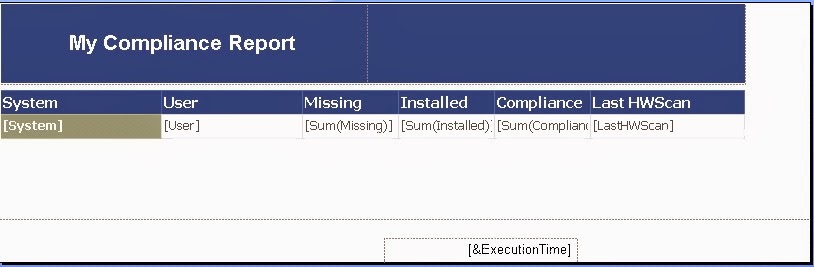


Next add a table in that empty blue spot.  Don't use the wizrd, just insert it, then drag your totals and averages from the latest dataset up to it.  Then re-size everything to make it look sexy.  Note, to get the decimal places to show under average missing I had to change it from Default to Number format in the text box properties...  And here we go:

Next, when I get around it it, I'll do some more report linking, and I've got a pretty cool 3rd Party compliance tracking report that I use a lot to put up.  And that one uses charts!


Wednesday, October 30, 2013

SCCM 2012 Client Troubleshooting

In an earlier post I put up a script to re-install the SCCM client and rebuild the repository.  Sometimes the problem is a little bit deeper.  Here is a sticky dump of all the problems / solutions that I have come across.

NOTE: I can't guarentee these will work in your environment, or even break stuff.  But from my experience this has all been successful for me.

If the SCCM 2012 client won't install

Client.MSI.log Error 8004100E stating "Setup was unable to compile the file discoverystatus.mof <someFile> <someError> 8004100E"

Repair the Microsoft Policy Platform as follows.  REF: Technet Forums, though I modified it.

1) Open an elevated command prompt.
    NOTE: I'm usually doing this in a remote command line which works fine.
2) cd "c:\Program Files\Microsoft Policy Platform"
3) net stop winmgmt /y
4) for %i in (*.dll) do regsvr32 /s %i
5) net start winmgmt
5) for %i in (*.mof) do mofcomp %i
    NOTE: there will be some errors, the most important success is ExtendedStatus.mof
6) for %i in (*.mfl) do mofcomp %i
    NOTE: there are typically no mfl files to comp
7) Re-run ccmsetup.exe

CCMSetup.log Error 80070643 preceeded by "The current version of Microsoft Policy Platform is already installed.  Setup will now exit"

Manually uninstall Microsoft Policy Platform

1) Open an elevated command prompt.
     NOTE: I'm usually doing this in a remote command line which works fine.
2) cd "c:\Program Files\Microsoft Policy Platform"
3) msiexec.exe /x MicrosoftPolicyPlatformSetup.msi /qn /l* mpp.log
4) Re-run ccmsetup.exe

Setup log hangs for more than 20 minutes.  Technically it's the ccmsetup service that hangs.  This is probably unique to our environment but if you use McAfee products:

1) Log onto the machine (remote is fine)
2) Right click McAfee in the taskbar and select Update Secuirty
3) Bounce the box and re-run ccmsetup.
 
If the client is installed but not working


Check the locationservices.log
1) Does it know who it's MP is?  If not troubleshoot MP issues

Site Boundary Issues
1) Check the IP of the machine against the boundaries.  Adjust boundaries if you missed a scope.

Grabbing an old site code? Noticed this after 2007 to 2012 upgrade.
1) Open an elevated command prompt
2) cd c:\windows\system32\GroupPolicy\Machine
3) delete the .pol file
4) gpupdate /force

ForgotThe.log Error 80041002 stating '(WBEM_E_NOT_FOUND)
1) see Microsoft KB

Check Impersonation Rights
1) Open local policy
2) Windows --> Security Settings --> Local Policies --> User Rights Assignment
3) "Impersonate a client after authentication" should include SERVICE
     NOTE: Be nice to your IA guy, validate this with them agains their standards


Updates don't work

Is the update you're not compliant with deployed? (duh, I know.  But I've done it)
1) Look in the built-in report 5. Compliance for a specific system
or
2) In the console open Software Updates --> all Software Updates
3) search for the KB, and check the Downloaded and Deployed columns
 
Is it getting the policy?
1) Get the UpdateID from the SCCM Console
2) Use PolicySpy to see if it's listed
     NOTE: using PolicySpy is outside the scope of this post.  Google it unless I write about it later.

WindowsUpdate.log Error 800736b3 (Assembly Not Installed)
NOTE: I'm not going to lie, this is almost always a fatal error.  Rebuilding the box should be considered.  But you can try any or all of the following:

1) Uninstall parent software, i.e. if it's a Office patch, reinstall Office.  I've seen this work for .Net as well.
2) Run the System Update Readiness Tool from Microsoft
3) Run SFC.exe /scannow (takes 15 minutes~ish)
4) Rebuild the Software Distribution folder
  a. Stop Windows Update
  b. Rename the c:\windows\softwaredistribution folder
  c. Start WUA back up, it'll rebuild softwaredistribution
5) Repair WMI
  a. (Best)Run WMIRepair.exe /cmd (packaged in R Zanders SCCM Client Center)
  or
  b. the light version:

  Set WMI service to disabled, and stop
      cd /d %windir%\system32\wbem
      for %i in (*.dll) do RegSvr32 -s %i
      for %i in (*.exe) do %i /RegSvr32
      cd /d %windir%\syswow64\wbem
      for %i in (*.dll) do RegSvr32 -s %i
       for %i in (*.exe) do %i /RegSvr32
   Set WMI to Auto and start
       cd /d %windir%\system32\wbem
       for %i in (*.mof) do mofcomp %i
       for %i in (*.mfl) do mofcomp %i
       cd /d %windir%\sysWoW64\wbem
       for %i in (*.mof) do mofcomp %i
       for %i in (*.mfl) do mofcomp %i

6) Repair MSIExec
    a. CD %windir%\system32
    b. attrib -r -s -h dllcache
    c. ren msi.dll msi.old
    d. ren msiexec.exe msiexec.old
    e. msihnd.dll msihnd.old
    f. Reboot
    g. Net stop msiserver
    h. Msiexec /unregister
    i. Msiexec /regserver
    j. Regsvr32.exe /s %windir%\system32\msi.dll
    k. Net start msiserver
7) If you got this far, rebuild the box.

ForgotThe.log 800F081F
NOTE: I haven't seen this but reading blogs it looks pretty popular right now
1) Microsoft

WUAHandler.log and/or UpdatesDeployment.log and/or UpdatesHander.log Error 800F0902
1) Uninstall impacted application (Office, .Net, etc) from Control Panel
    a. If that fails use the MS Fix It
2) Reset the Windows Update components. NOTE: Long process, I put it at the bottom.
3) Run the System Update Readiness Tool from Microsoft
4) Re-run Windows Update NOTE: you can use WMIC commands from My Blog, use 108 and watch the UpdatesStore.log
5) If it's still not working, hit it with a SFC.exe /scannow (15 minutes or so run time)
6) If you got this far, rebuild the box

ForgotThe.log 80040154 stating that the Class is not Registered
1) Make sure the Trusted Installer Service is set to Auto and Started

CBS.log Error 8004A029
1) Open regedt32 NOTE: Standard disclaimer on Reg Edits, back up your stuff, you might lose it
2) GoTo HKLM\System\CurrentControlSet\Control\Network\MaxNumFilters
3) change the value to 14, or just delete it (the max max filters is hard coded by Win7 to 14)

WUAHander.log 800B0109  REF: Tom Popov
1) Modify GPO (under Windows Update) to "Allow signed updates from an internet Microsoft Update Service Location"

UpdatesDepoyment.og 87D00622 stating "Failed to trigger installation of Software updates"
NOTE: might be related to UpdatesHander.log error 80041033 'RequestTaskStart Failed"
1) Do the full client and WMI rebuild from My Blog

ForgotThe.log Error 87D0070C stating Software Execution Timeout
1) Re-run from Software Center

ForgotThe.log Error 1719 stating The Windows Installer Service Could Not Be Accessed, the Windows Installer Is Not Correctly Installed
1) Open regedt32 NOTE: Standard disclaimer on Reg Edits, back up your stuff, you might lose it
2) GoTo HKLM\System\CurrentControlSet\Services\MSIserver\WOW64 (if you're on 64-bit)
3) Right Click WOW64, then modify set value data to 0 (hex)
4) Bounce the box

ForgotThe.log Error Forgot stating "The Windows Installer Service could not be accessed"
1) Try the 1719 fix above first, I think they are related
2) Microsoft reference


MSIExec Crashes
Noted in the Application Event Log:

Faulting application name: msiexec.exe, version: 5.0.7000.0, time stamp: 0x49432105
Faulting module name: ntdll.dll, version: 6.1.7000.0, time stamp: 0x49434898
Exception code: 0xc0000005
Fault offset: 0x00000000000ebbaa
Faulting process id: -----
Faulting application start time: 0x01c979451ba01943
Faulting application path: C:\Windows\System32\msiexec.exe
Faulting module path: C:\Windows\SYSTEM32\ntdll.dll

 
1) Open regedt32 NOTE: Standard disclaimer on Reg Edits, back up your stuff, you might lose it
2) GoTo HKLM\Software\Microsoft\SQMClient\Windows\DisabledSessions
3) Rename MachineThrottleing to _MachineThrottling
or
3) Delete the DisabledSesssions key NOTE: make sure it's backed up....


HOW TO Reset Windows Update Components
NOTE: Linewraps on steps 8 & 9
1 ) open an elevated command prompt
2 ) net stop bits
3 ) net stop wuauserv
4 ) Del "%ALLUSERSPROFILE%\Application Data\Microsoft\Network\Downloader\qmgr*.dat"
5 ) Ren %systemroot%\SoftwareDistribution\DataStore *.bak
6 ) Ren %systemroot%\SoftwareDistribution\Download *.bak
7 ) Ren %systemroot%\system32\catroot2 *.bak
8 ) sc.exe sdset bits D:(A;;CCLCSWRPWPDTLOCRRC;;;SY)(A;;CCDCLCSWRPWPDTLOCRSDRCWDWO;;;BA)(A;;CCLCSWLOCRRC;;;AU)(A;;CCLCSWRPWPDTLOCRRC;;;PU)
9 ) sc.exe sdset wuauserv D:(A;;CCLCSWRPWPDTLOCRRC;;;SY)(A;;CCDCLCSWRPWPDTLOCRSDRCWDWO;;;BA)(A;;CCLCSWLOCRRC;;;AU)(A;;CCLCSWRPWPDTLOCRRC;;;PU)
10) cd /d %windir%\system32
11) for %i in (*.dll) do RegSvr32.exe –s %i
12) netsh winsock reset
13) netsh winhttp reset proxy
14) net start bits
15) net start wuauserv

Other References
Hotfixes for WMI:
http://ccmexec.com/2011/08/suggested-hotfixes-for-wmi-related-issue-on-windows-platforms/

Misc Client Troubleshooting
http://technet.microsoft.com/en-us/library/bb693982.aspx